# Building Content

Welcome to the Creative Mail builder quick start. This guide walks you through the core features so you can confidently structure layouts, add content and polish every detail.

Here’s a quick tour of the workspace and key tools:

## Stage & Sidebar

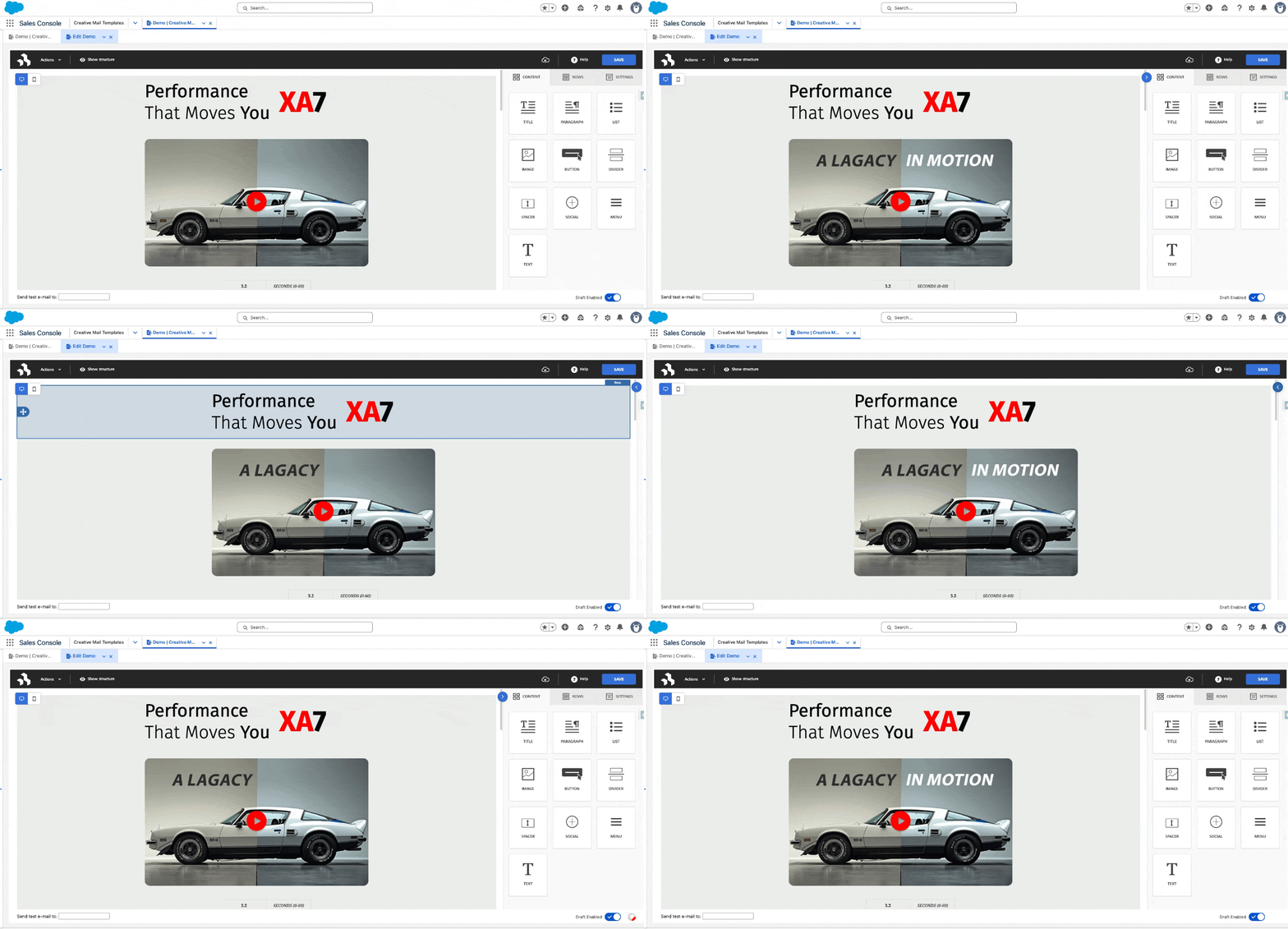
The stage lives on the left and acts as your canvas—drag in rows, columns and content blocks to build the layout. The sidebar sits on the right and holds all of your customization controls, so you can tweak whatever you have selected. A small icon between them lets you collapse the sidebar when you want more editing space.

<figure><img src="https://3979581627-files.gitbook.io/~/files/v0/b/gitbook-x-prod.appspot.com/o/spaces%2FFz9HnYEjjTQkkiyL9ed8%2Fuploads%2Fgit-blob-912d7623c7e83e2b102c088f6e23d2d0f53dfc25%2Fchrome-capture-2025-12-11.gif?alt=media" alt="Stage and sidebar in Creative Mail builder"><figcaption><p><em>See how the stage and sidebar work together inside the Creative Mail builder.</em></p></figcaption></figure>

## Settings

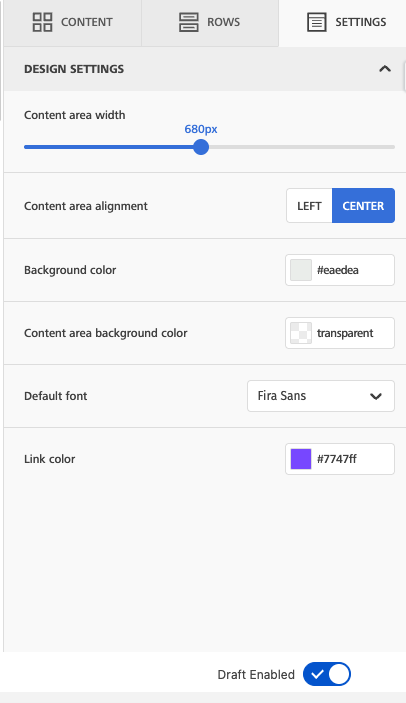
The **Settings** tab manages global defaults for the entire design. Every row and content block starts with these values unless you override them.

<figure><img src="https://3979581627-files.gitbook.io/~/files/v0/b/gitbook-x-prod.appspot.com/o/spaces%2FFz9HnYEjjTQkkiyL9ed8%2Fuploads%2Fgit-blob-d067d4d62ffccc58d30e5315e69b5ad4cc455a05%2Fsettings.png?alt=media" alt="Settings tab in Creative Mail builder"><figcaption><p><em>Adjust global defaults like colors &#x26; fonts from the Settings tab.</em></p></figcaption></figure>

You can quickly adjust:

* Content area width
* Content area alignment
* Background color
* Content area background color
* Default font
* Link color

Together these settings establish the overall look and feel of your email.

## Rows

Rows form the main structure of your email or page. Each row can include one or more columns and each column can host content blocks.

<figure><img src="https://3979581627-files.gitbook.io/~/files/v0/b/gitbook-x-prod.appspot.com/o/spaces%2FFz9HnYEjjTQkkiyL9ed8%2Fuploads%2Fgit-blob-a0f5b69adb315e6e0d8161a75924c5b37f894fed%2Frows.png?alt=media" alt="Row properties in Creative Mail"><figcaption><p><em>Row properties let you fine-tune backgrounds, borders and padding.</em></p></figcaption></figure>

Row-level options include:

* Row background color
* Content area background color
* Content area borders (with per-side controls)
* Rounded corners for the content area
* Content area padding (all sides or individual)
* Background image slot inside the content area

## Columns

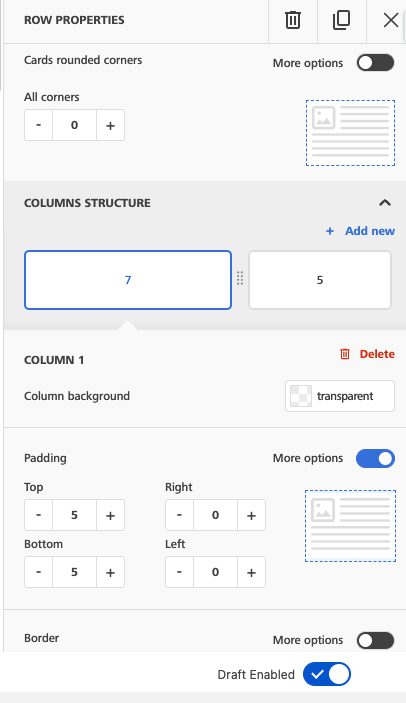
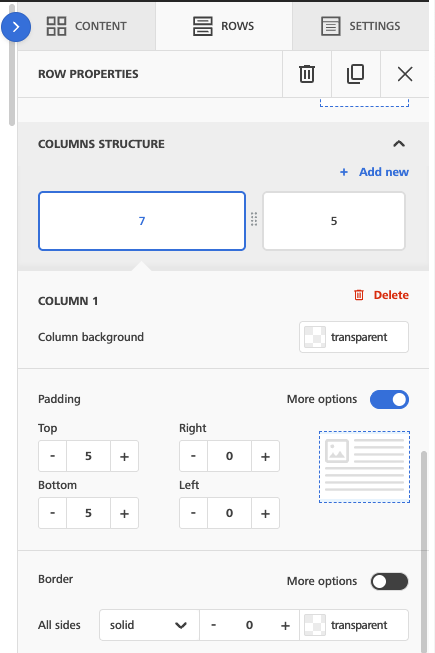
Use columns to create multi-column layouts, fine-tune spacing and style sections independently.

<figure><img src="https://3979581627-files.gitbook.io/~/files/v0/b/gitbook-x-prod.appspot.com/o/spaces%2FFz9HnYEjjTQkkiyL9ed8%2Fuploads%2Fgit-blob-ab0224e2539384f4160f27d0484fc210ad0d9d0b%2Fcolumns.png?alt=media" alt="Column properties in Creative Mail"><figcaption><p><em>Column properties mirror row controls with background, border and padding.</em></p></figcaption></figure>

For each column, you can modify:

* Background color for the column container
* Content area background color if you want contrast against the row
* Border style, width and per-side options
* Rounded corners to soften the column edges
* Padding on each side with individual controls

The column you are working on stays highlighted, making it easy to see exactly what is being edited.

## Content

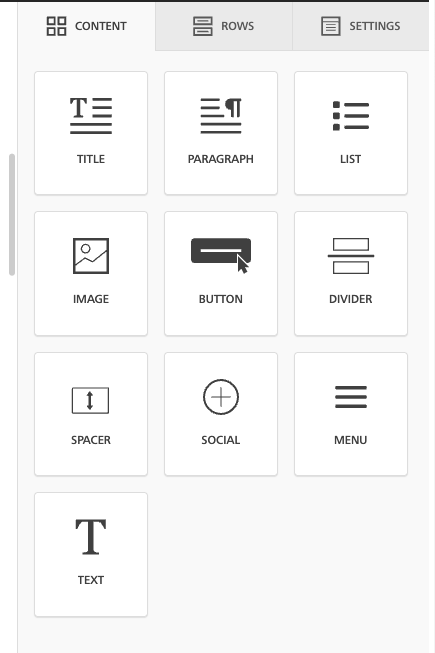
Creative Mail offers a wide range of content blocks that you can drag into any column.

<figure><img src="https://3979581627-files.gitbook.io/~/files/v0/b/gitbook-x-prod.appspot.com/o/spaces%2FFz9HnYEjjTQkkiyL9ed8%2Fuploads%2Fgit-blob-275bacadd62cb58c39fe9a5d28336237be2fa712%2FScreenshot%202025-12-11%20at%209.16.37%E2%80%AFpm.png?alt=media" alt="Content blocks available in Creative Mail"><figcaption><p><em>Drag any block—text, images, buttons and layout helpers—into your layout.</em></p></figcaption></figure>

Available content blocks:

* Title
* Paragraph
* List
* Image
* Button
* Divider
* Spacer
* Social
* Menu
* Text

Each block comes with its own padding and visibility controls so you can refine the layout for every device.

## Mobile Design Mode

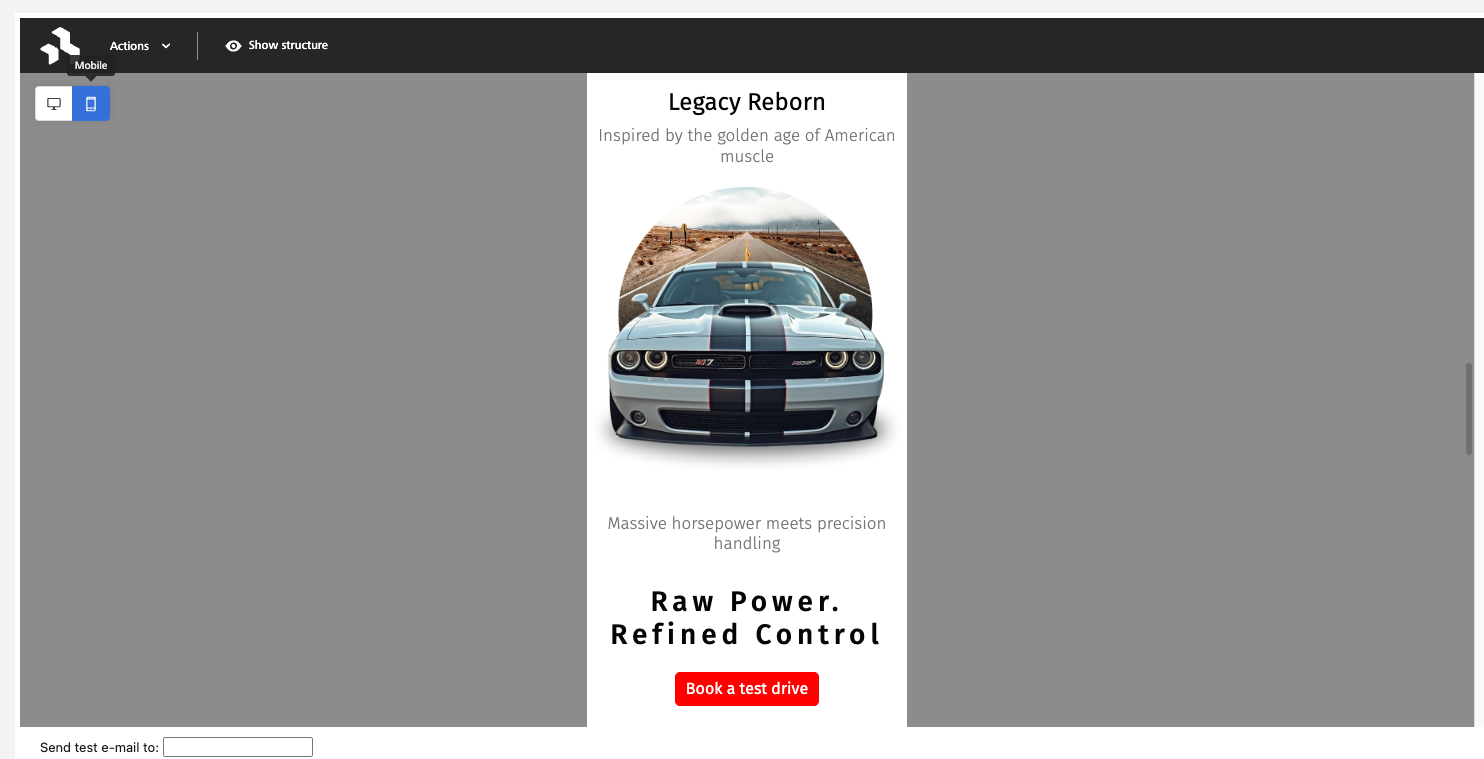
Mobile Design Mode shows your layout with a mobile-first perspective, making it simple to perfect small-screen experiences.

<figure><img src="https://3979581627-files.gitbook.io/~/files/v0/b/gitbook-x-prod.appspot.com/o/spaces%2FFz9HnYEjjTQkkiyL9ed8%2Fuploads%2Fgit-blob-dea3607704f6f0ab41db76f17011c1d88dace442%2Fmobile-design-mode.png?alt=media" alt="Creative Mail mobile design mode"><figcaption><p><em>Fine-tune spacing and visibility using Mobile Design Mode’s phone preview.</em></p></figcaption></figure>

Most edits apply to both desktop and mobile automatically. If you see a mobile icon next to a setting, that change affects only the mobile version.

## Preview

Preview mode lets you see exactly how your design will look on different devices and under different conditions before you send or publish.

<figure><img src="https://3979581627-files.gitbook.io/~/files/v0/b/gitbook-x-prod.appspot.com/o/spaces%2FFz9HnYEjjTQkkiyL9ed8%2Fuploads%2Fgit-blob-ee19fbede0eb35acc7c27ec6fa50d80bff4930b6%2Fpreview1.gif?alt=media" alt="Device preview in Creative Mail"><figcaption><p><em>Preview confirms how your layout renders on desktop, tablet, mobile and dark mode.</em></p></figcaption></figure>

You can preview:

* Desktop
* Tablet
* Mobile
* Dark mode
* Custom pixel width